

Apple-Device-Support練習試験と学習ガイドは厳密検証されたFast2test最新な218問題
2025年最新のな厳密検証された合格させるApple-Device-Support学習ガイドベズトお試しセット
Apple Apple-Device-Support 認定試験の出題範囲:
| トピック | 出題範囲 |
|---|---|
| トピック 1 |
|
| トピック 2 |
|
| トピック 3 |
|
| トピック 4 |
|
| トピック 5 |
|
| トピック 6 |
|
| トピック 7 |
|
| トピック 8 |
|
| トピック 9 |
|
| トピック 10 |
|
| トピック 11 |
|
質問 # 65
You have two compatible Apple devices in close proximity and want to use Instant Hot-spot. Which two are additional requirements to use Instant Hot-spot? (Select two.)
- A. Each device is signed in with the same Apple Account.
- B. Each device must be signed in to a different Apple Account.
- C. Each device has Wi-Fi and Bluetooth turned on.
- D. Each device has IPv6 turned on.
- E. Both devices must be connected to the same mobile network provider.
正解:A、C
解説:
Instant Hotspot needs:
* A:Same Apple Account for seamless recognition.
* B:Wi-Fi and Bluetooth enabled for connectivity.
* Option C: Mobile provider isn't relevant.
* Option D: IPv6 isn't a requirement.
* Option E: Different accounts break Continuity.References: Apple Support - "Use Instant Hotspot" (support.apple.com/HT204023).
質問 # 66
Which type of account does an organization create for a user in Apple Business Manager or Apple School Manager?
- A. Personal Apple Account
- B. Secure Apple Account
- C. Managed Apple Account
- D. Business Apple Account
正解:C
解説:
Organizations createManaged Apple Accountsin Apple Business Manager/School Manager for controlled, work-specific use.
* Option A: Personal is user-created.
* Option B: Not a term.
* Option D: Not a distinct type.
* Option C: Correct-organizational standard.References: Apple Business Manager Guide (support.apple.
com/guide/apple-business-manager).
質問 # 67
Which troubleshooting steps should you follow if Quick Start does NOT automatically discover the other device?
- A. Connect both devices to Wi-Fi and make sure that they're placed near each other.
- B. Restart both devices and try again.
- C. On your current device, go to Settings > Bluetooth and select your new device from the list of options.
- D. Turn off Bluetooth and Wi-Fi to avoid interference when discovering devices.
正解:B
解説:
Quick Start is a feature that allows you to set up your new iOS device automatically using your current iOS device. To use Quick Start, both devices need to be running iOS 11 or later, have Bluetooth turned on, and be placed near each other. If Quick Start does not automatically discover the other device, it could be due to a temporary glitch or a network issue. Restarting both devices can help resolve the problem and allow Quick Start to work properly. References: Use Quick Start to transfer data to a new iPhone or iPad - Apple Support, iPhone Quick Start Not Working? Here Are Fixes - iMobie, Fix iPhone Quick Start Not Working: 6 Troubleshooting Tips - OS X Daily
質問 # 68
Scenario
You're migrating your Windows PC to a new Mac.
Which software should you download on your Windows PC to aid the migration process?
- A. PC Mover
- B. Windows Migration Assistant
- C. Migration Wizard
- D. Transfer Protocol
正解:A
質問 # 69
ACME, Inc. wants to ensure that iPhone and iPad backups created with Apple Configurator on a Mac are encrypted and protected with a password. Which action in Apple Configurator should you select to create password encrypted backups?
- A. Actions > Apply > Backup Password
- B. Actions > Prepare, then select Encrypt Backups
- C. Actions > Advanced > Enable Encrypted Backups
- D. Actions > Advanced > Encrypt
正解:C
解説:
To create password encrypted backups with Apple Configurator, you need to enable encrypted backups for the devices or Blueprints that you want to back up. This option is available under the Actions > Advanced menu, and it requires you to enter and verify a password for the backups. Once enabled, encrypted backups save users' passwords and provide more security for the data. Encrypted backups can be restored only to devices or Blueprints that have the same encryption settings and password. References: Enable encrypted backups in Apple Configurator
質問 # 70
Which three things happen to web browsing when Lockdown Mode is turned on for iPhone?
- A. Certain complex web technologies are blocked.
- B. Safari is removed from the Home Screen.
- C. Only Apple approved websites can be viewed.
- D. Web fonts might not be displayed.
- E. Images might be replaced with a missing image icon.
正解:A、D、E
質問 # 71
Match the startup icons on the left to the descriptions on the right by dragging the responses to the correct target areas. Responses may be used once, more than once, or not at all.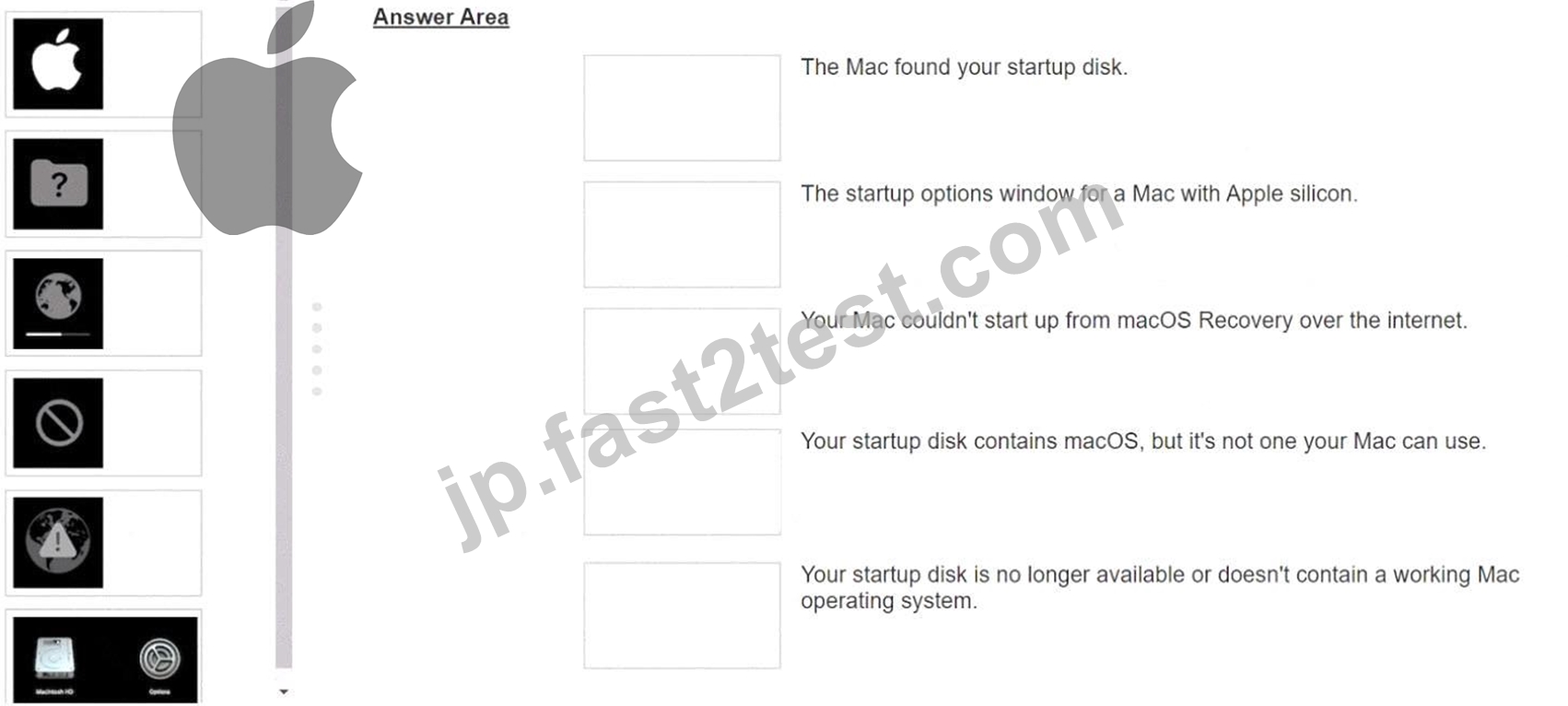
正解:
解説: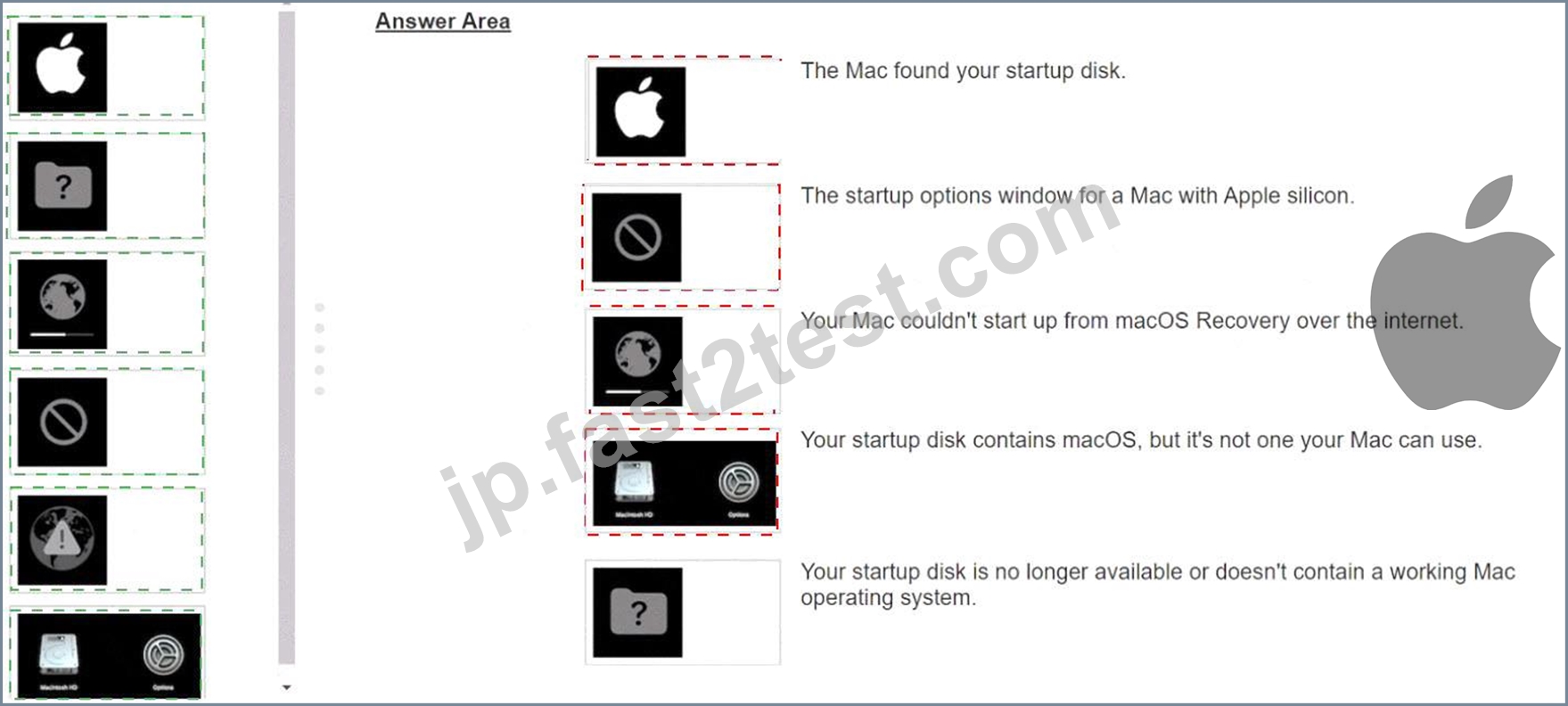
Explanation: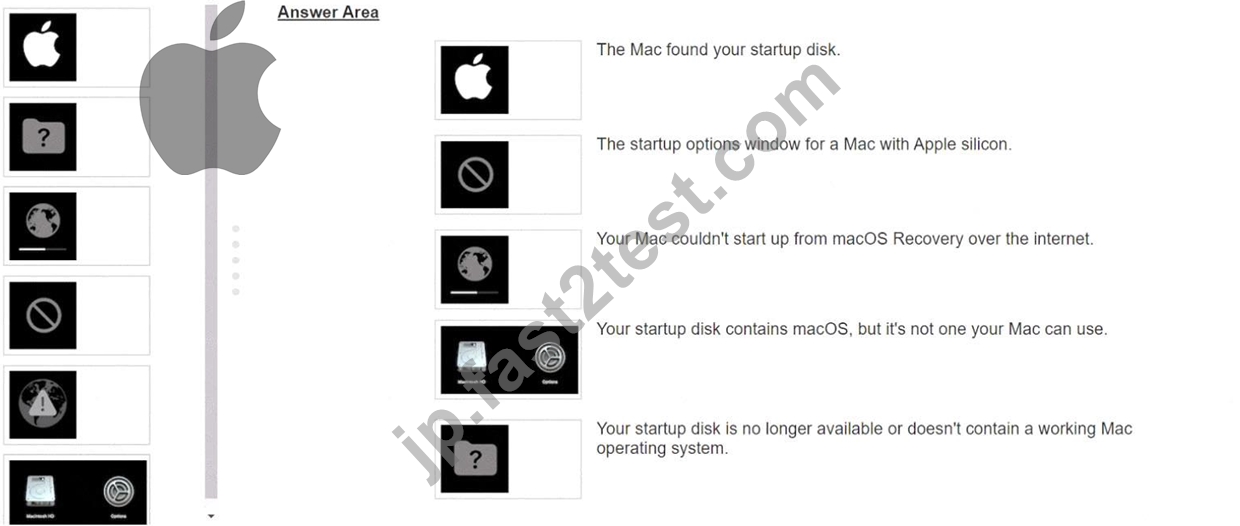
質問 # 72
Scenario
You're migrating your Windows PC to a new Mac.
Which software should you download on your Windows PC to aid the migration process?
- A. Windows Migration Assistant
- B. Migration Wizard
- C. PC Mover
- D. Transfer Protocol
正解:A
質問 # 73
Select Four.
What file system formats are available in Disk Utility on a Mac
- A. MS-DOS (FAT)
- B. Mac OS Extended
- C. ExFat
- D. NTFS
- E. GFS
- F. APFS
正解:A、B、C、F
解説:
Disk Utility on Mac supports several file system formats for formatting, partitioning, and erasing disks. According to the Apple Device Support Reference Materials1, these formats are:
* Apple File System (APFS): The file system used by macOS 10.13 or later, which features strong encryption, space sharing, snapshots, fast directory sizing, and improved file system fundamentals.
APFS is optimized for the Flash/SSD storage used in recent Mac computers, but it can also be used with older systems with traditional hard disk drives (HDD) and external, direct-attached storage. APFS supports four variants: APFS, APFS (Encrypted), APFS (Case-sensitive), and APFS (Case-sensitive, Encrypted).
* Mac OS Extended: The file system used by macOS 10.12 or earlier, which is also known as HFS Plus or HFS+. Mac OS Extended supports journaling, which helps protect the integrity of the file system in case of power outages or hardware failures. Mac OS Extended also supports four variants: Mac OS Extended (Journaled), Mac OS Extended (Journaled, Encrypted), Mac OS Extended (Case-sensitive, Journaled), and Mac OS Extended (Case-sensitive, Journaled, Encrypted).
* ExFAT: A file system that is compatible with both Mac and Windows computers, and can be used for transferring files between them. ExFAT supports larger file sizes than FAT32, up to 16 EB, and larger volumes, up to 128 PB. ExFAT does not support journaling, encryption, or case sensitivity.
* MS-DOS (FAT): A file system that is compatible with both Mac and Windows computers, and can be used for transferring files between them. MS-DOS (FAT) supports two variants: FAT16 and FAT32.
FAT16 is limited to 2 GB volumes and 4 GB files, while FAT32 can support up to 2 TB volumes and 4 GB files. MS-DOS (FAT) does not support journaling, encryption, or case sensitivity.
Therefore, the correct answer is A, C, D, and F.
References:
* File system formats available in Disk Utility on Mac.
質問 # 74
What other sharing settings may prevent Screen Sharing from being turned on?
- A. Remote Management
- B. Remote Apple Events
- C. Remote Login
- D. Media Sharing
正解:A
解説:
Screen Sharing is a feature that allows you to view and control the screen of another Mac on your network.
However, Screen Sharing cannot be turned on if Remote Management is already enabled on your Mac.
Remote Management is a more advanced feature that allows you to remotely manage Mac computers in a commercial or business environment. Remote Management and Screen Sharing are compatible with Virtual Network Computing (VNC), but they cannot be used at the same time. To turn on Screen Sharing, you need to turn off Remote Management first in the Sharing settings of System Settings12. The other sharing settings, such as Remote Login, Media Sharing, and Remote Apple Events, do not affect Screen Sharing and can be turned on or off independently. References: Turn Mac screen sharing on or off - Apple Support, Share the screen of another Mac - Apple Support
質問 # 75
Select the setting in the sidebar that you should you use to copy the password of a known Wi-Fi network.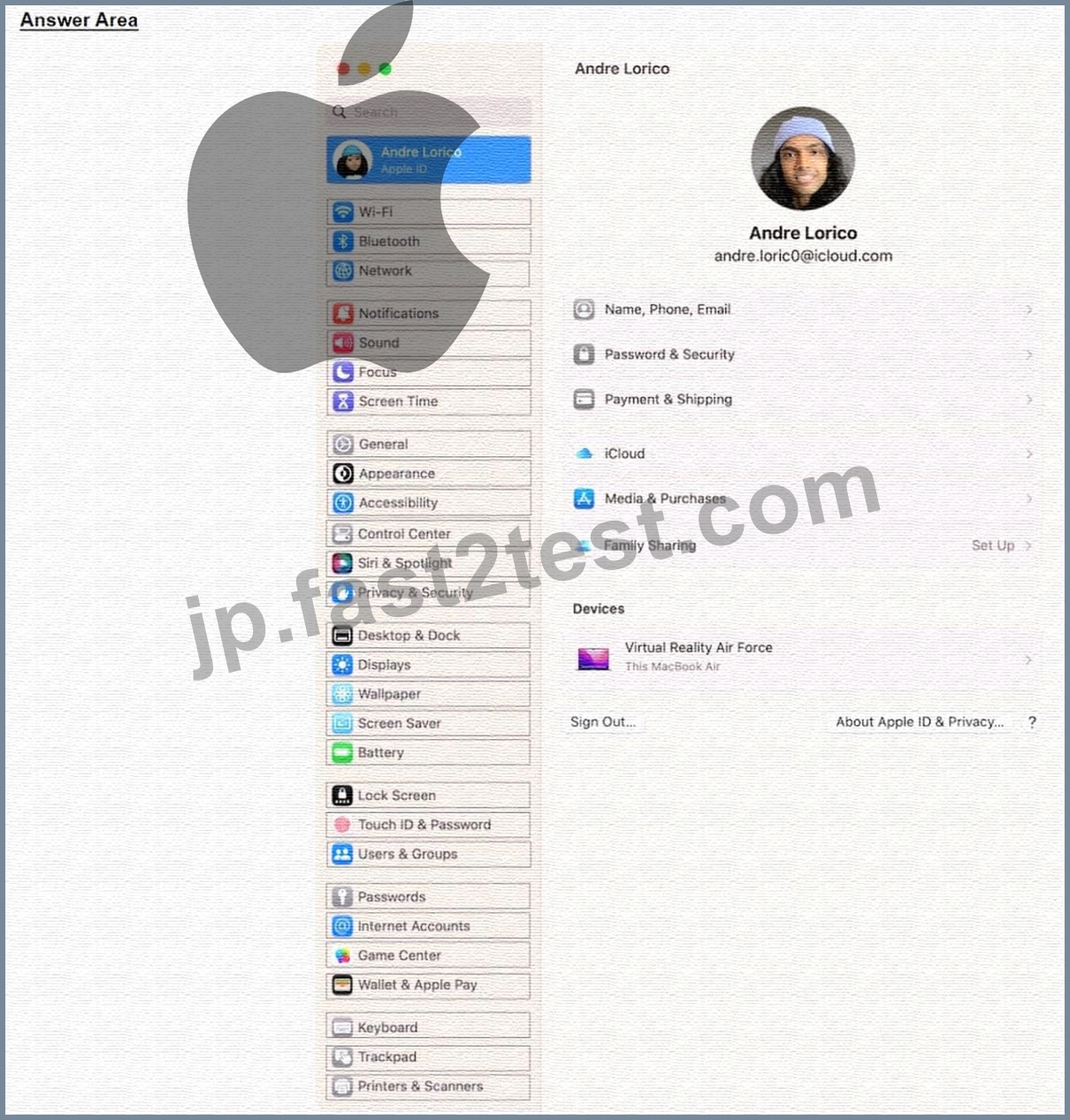
正解:
解説: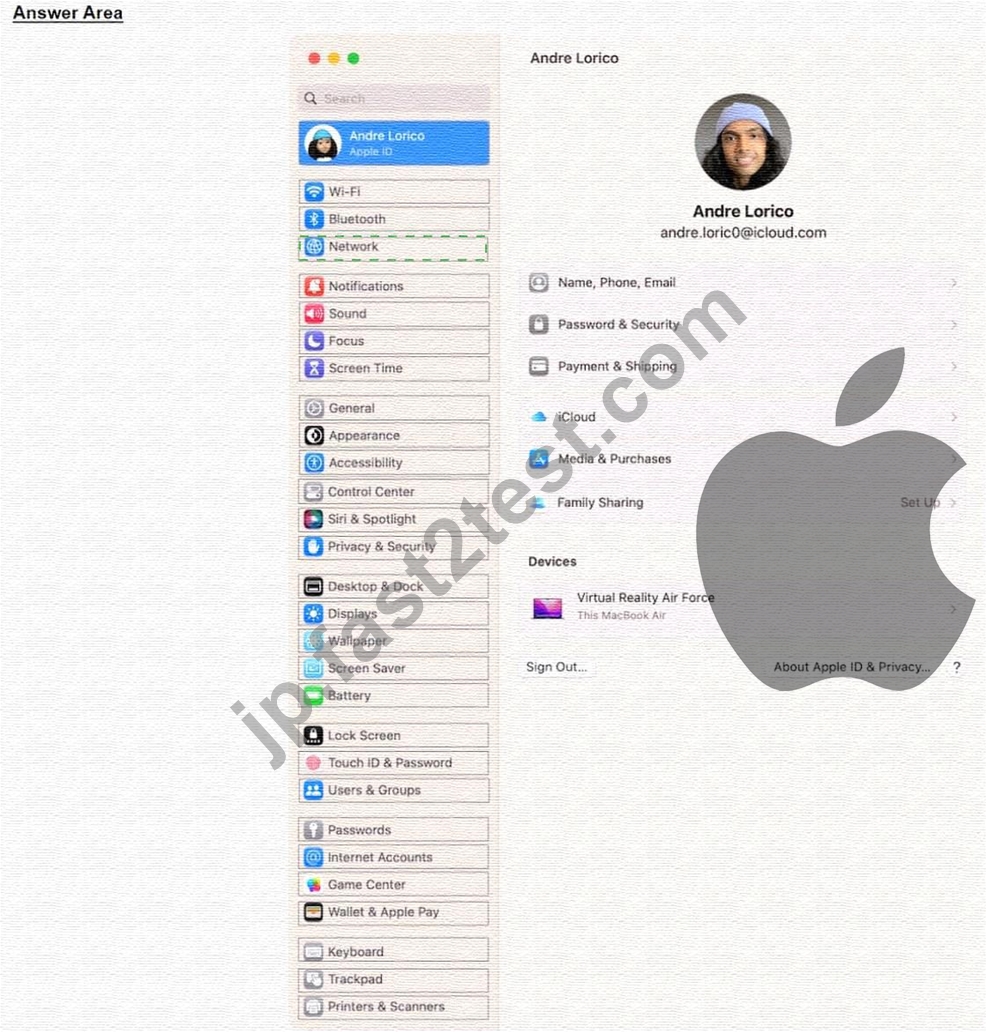
Explanation:
Click Network in the sidebar, then click Wi-Fi on the right. Scroll down and click Advanced to open the list of known networks. Click the More button. next to the network name, then choose Copy Password.
質問 # 76
Select Three.
When do you need your Passcode to Enable Face ID?
- A. You haven't unlocked your phone in more than 2 days.
- B. Your phone has been in sleep mode for the last 8 hours.
- C. After five attempts to recognize a face unsuccessfully.
- D. You updated your phone.
- E. You haven't unlocked the phone using a passcode for more tha hasn't been used in the last 4 hours.
正解:A、C、E
質問 # 77
Scenario
Melody's Mac has multiple printers configured.
Where in System Settings should you go to determine if her printers were configured manually or by an MDM solution?
- A. Printers & Scanners > Advanced
- B. Privacy & Security > Profiles
- C. General > Sharing > Printer Sharing
- D. Printers > Advanced
正解:A
質問 # 78
Which accessibility feature enlarges text on the screen when you move the pointer over it?
- A. Hover Text
- B. VoiceOver
- C. Zoom
- D. Pointer Control
正解:A
解説:
TheHover Textaccessibility feature on macOS enlarges text under the pointer when activated, aiding users with visual impairments. Enabled inSystem Settings > Accessibility > Display > Hover Text, it displays a magnified text box when hovering over items, with customizable size and activation (e.g., holding Command).
* Option A (VoiceOver) narrates screen content but doesn't enlarge text on hover.
* Option B (Zoom) magnifies the entire screen or a portion, not specifically text under the pointer.
* Option C (Pointer Control) adjusts pointer behavior, not text size.
* Option D (Hover Text) matches the description precisely.Introduced in macOS Mojave and refined by
2025, see Apple's "Use Hover Text on Mac" (support.apple.com/HT211100).
質問 # 79
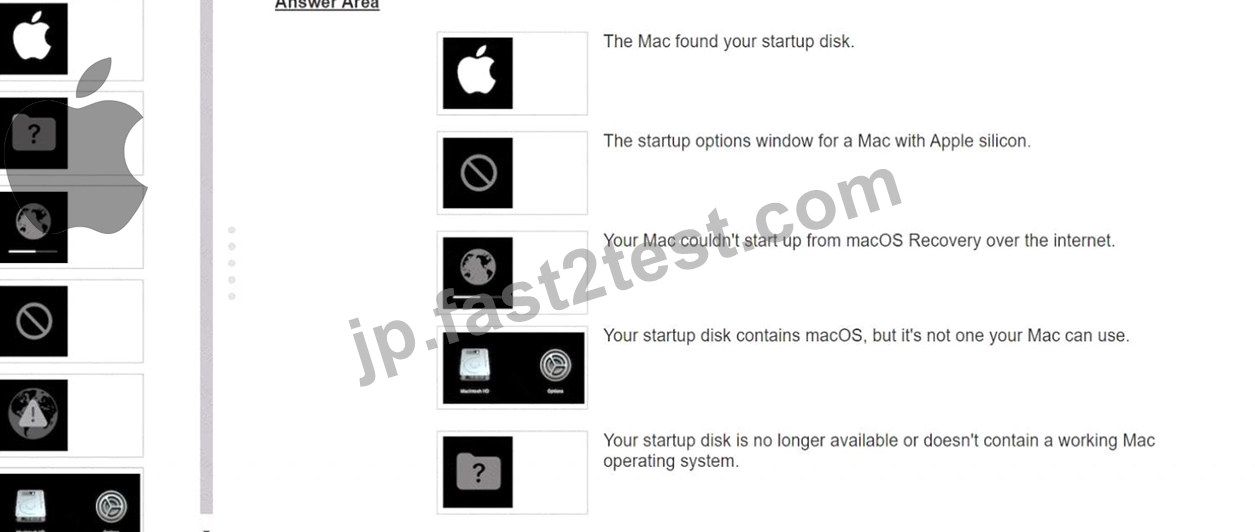
Match the startup icons on the left to the descriptions on the right by dragging the responses to the correct target areas. Responses may be used once, more than once, or not at all.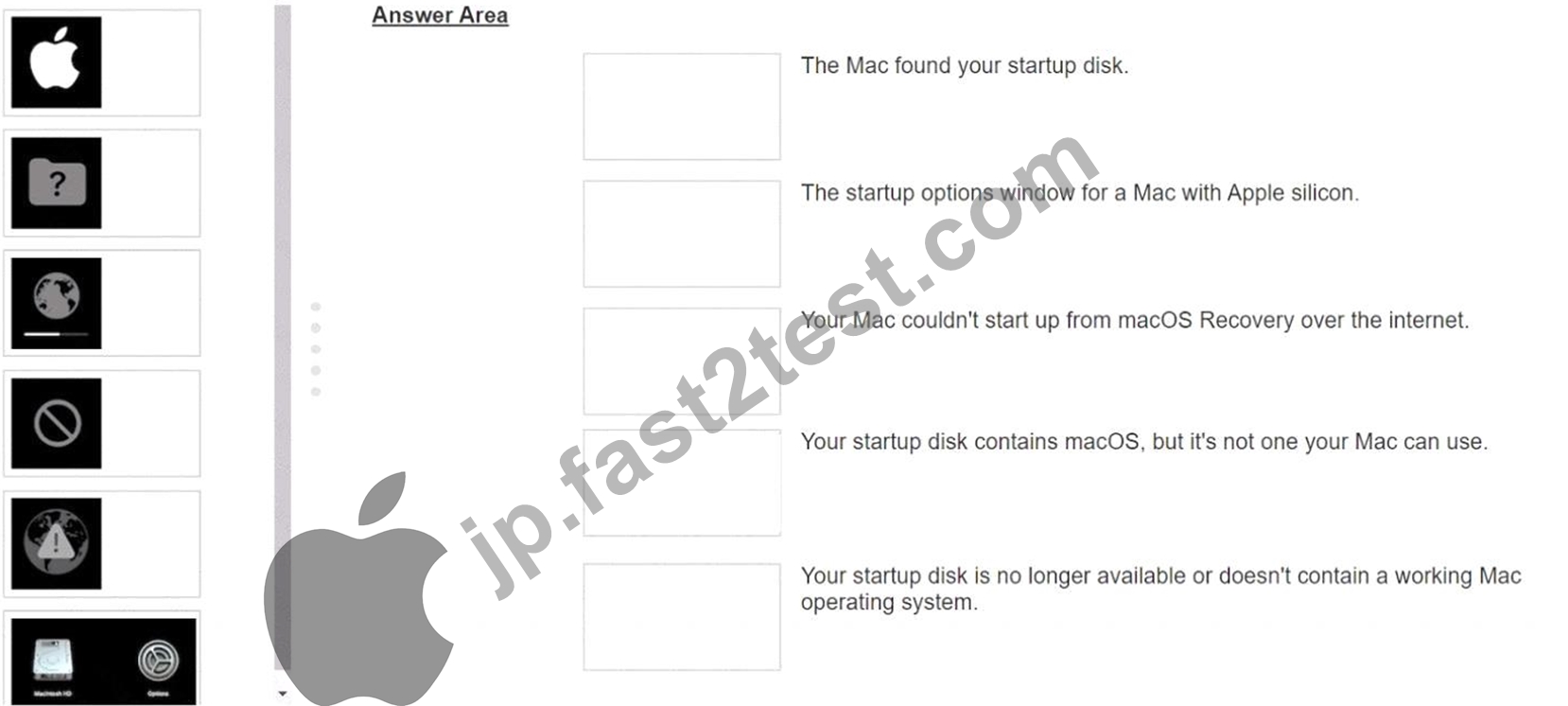
正解:
解説: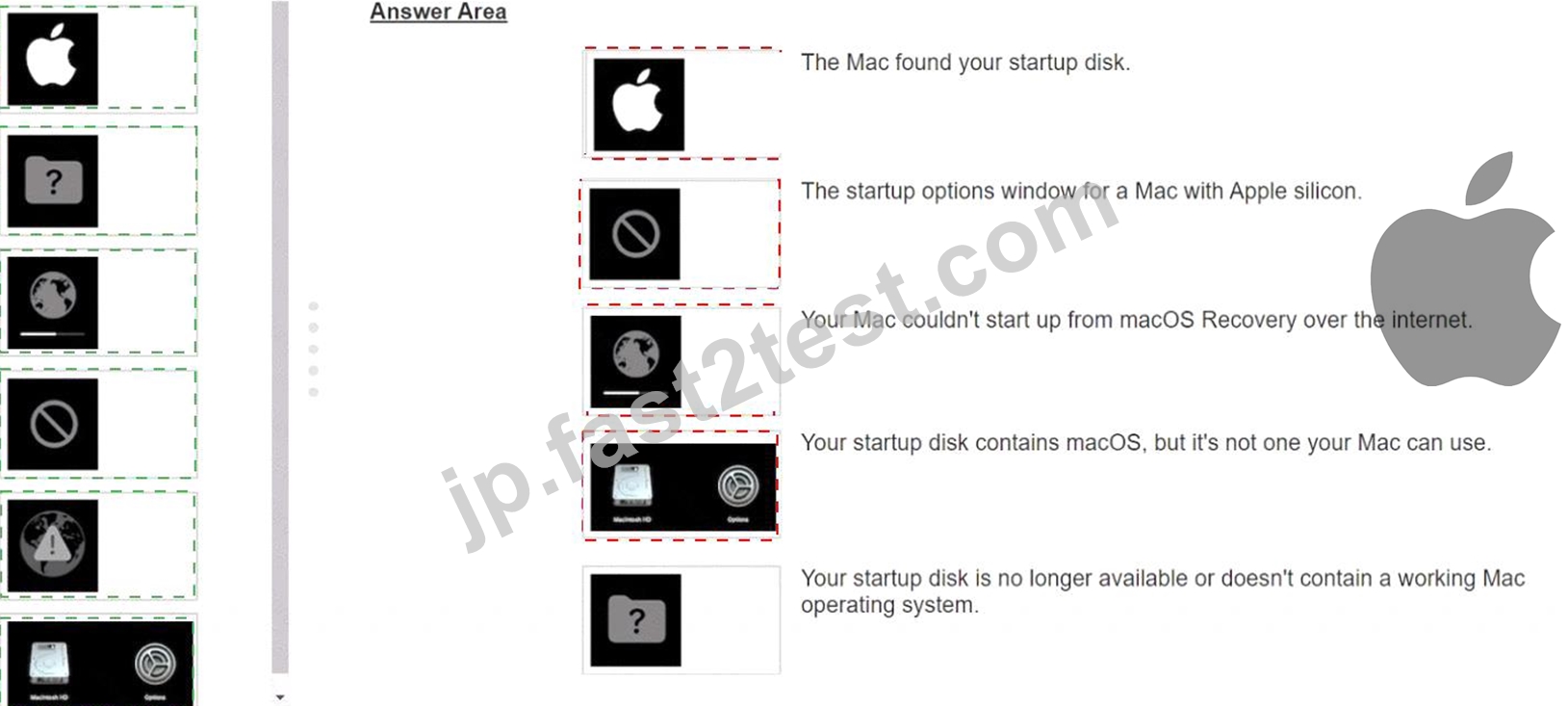
質問 # 80
Where can you add a VPN configuration in macOS?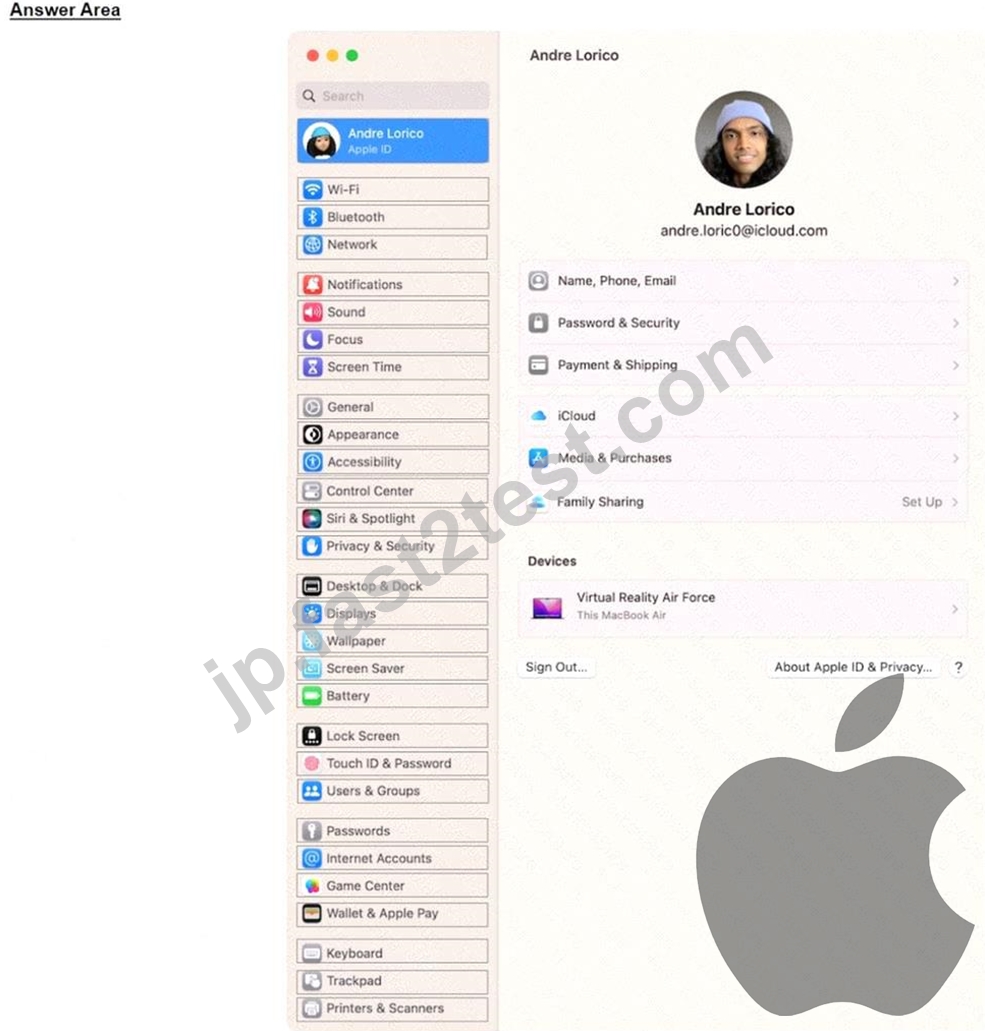
正解:
解説:
Explanation:
System Settings > Network > VPN & Filters > Add VPN Configuration
質問 # 81
A user reports that the keyboard on their Mac needs replacement. They say about 10 keys on the right side of the keyboard are producing incorrect characters when pressed. What is the most likely explanation?
- A. Game Mode is active.
- B. Mouse Keys is active.
- C. The keyboard needs replacement.
- D. Sticky Keys is active.
正解:C
解説:
When multiple keys (e.g., 10 on the right side) on a Mac keyboard consistently produce incorrect characters, it suggests a hardware issue rather than a software misconfiguration. Keyboards can fail due to physical damage, wear, or internal connection issues, leading to erratic behavior like wrong outputs.
* Option A (Game Mode) is a feature on iOS/iPadOS (not macOS as of 2025) and doesn't affect keyboard input mapping.
* Option B (Mouse Keys) enables numeric keypad keys to control the pointer but doesn't remap standard keys to produce incorrect characters.
* Option D (Sticky Keys) modifies key press behavior for accessibility (e.g., holding modifiers), but it doesn't cause keys to output wrong characters.
* Option C (keyboard replacement) aligns with a hardware fault, especially given the localized nature of the issue (right side). Basic troubleshooting (e.g., restarting, checking language settings) should be ruled out first, but the description points to a physical defect.See Apple's "If your Mac keyboard isn't working" (support.apple.com/HT204540) for hardware troubleshooting steps.
質問 # 82
......
究極のガイドはApple-Device-Support最新時間限定今すぐダウンロード!:https://jp.fast2test.com/Apple-Device-Support-premium-file.html