

[2024年最新] 完璧Apple-Device-Support問題集問題と解答で一年無料最速更新
更新されたのは2024年リアルな無敵Apple-Device-Support問題集で100% 無料Apple-Device-Support試験問題集
質問 # 18
Match the user types on the left to the descriptions on the right by dragging the responses to the correct target areas. Responses may be used once, more than once, or not at all.
正解:
解説: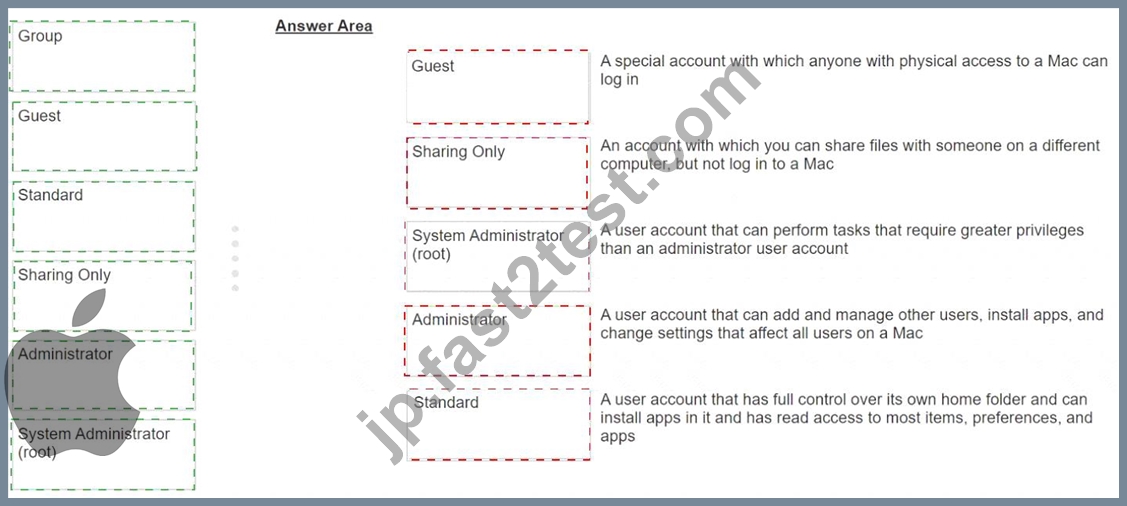

質問 # 19
Use this image to answer the question.
What does this iPhone Privacy Warning message indicate?
- A. Local network access is enabled for a third-party app
- B. Private Wi-Fi Address is disabled for this network
- C. Limit IP Address Tracking is disabled for this network
- D. iOS has detected a spoofed MAC address on the network
正解:B
質問 # 20
Scenario
You would like to access files stored in iCIoud Drive on your Windows PC at work.
What should you do to access these files on your PC?
- A. Download iCIoud for Windows and set it up with your Apple ID.
- B. Copy the content of iCIoud Drive from your Mac to an external drive, and connect the external drive to your Windows PC.
- C. Download iCIoud Drive from the Windows App Store and set it up using your Apple ID.
正解:A
質問 # 21
Which folders normally appear at the root level of the storage volume in the Finder on a Mac?
- A. Applications, Library, System, and Users
- B. Documents, Library, System, and Users
- C. Applications, Documents, System, and Users
- D. Library, Network, System, and Volumes
正解:A
解説:
This is the correct answer because these are the four folders that normally appear at the root level of the storage volume in the Finder on a Mac. The root level is the topmost level of the filesystem hierarchy, denoted by /. The Applications folder contains all the applications installed on the Mac, the Library folder contains system and user preferences, the System folder contains the operating system files, and the Users folder contains the home folders of each user account. These folders are essential for the functioning and organization of the Mac, and they should not be modified or deleted without a good reason. References: Access the Root Directory in Mac OS X in 4 Ways Quickly, Unix filesystem - Wikipedia, Working with APFS Volume Groups | Carbon Copy Cloner - Bombich
質問 # 22
How many fingerprints can you enroll on iPad Air (4th generation)?
- A. Five
- B. Ten
- C. Two
- D. Three
正解:A
質問 # 23
Scenario
Antonio recently bought his iPhone 14 Pro Max. It's taking over an hour to charge the device to 50% using his 5W USB power adapter that came with his previous iPhone.
Why can't Antonio fast charge his iPhone?
- A. Fast charging requires a 61W or higher power adapter.
- B. Fast charging requires a 20W or higher power adapter.
- C. Fast charging isn't supported on iPhone 14 Pro Max.
- D. Fast charging iPhone 14 Pro Max to 50% takes more than 60 minutes.
正解:B
質問 # 24
You are trying to connect a podcast mic to your mac. You go into Sounds, but the mic isn't appearing an as option. Where else can you check to see if the mic is properly connected to your mac?
- A. System Settings > Printers & Devices
- B. System Information > Hardware
- C. System Settings > Hardware
- D. System Information > Devices
正解:B
質問 # 25
How to put an iPhone in recovery mode?
- A. -Quickly press and release the Volume Up button.
- B. -Quickly press and release the Volume Down button.
- C. -Press and hold the Side (or Power) button until the Recovery Mode screen appears. Keep holding the button even when the Apple logo appears; release it only when the Recovery Mode screen is visible.
正解:C
質問 # 26
What does Find My use to locate lost or missing devices?
- A. Bluetooth
- B. Cellular Data
- C. Built in trackers
- D. Wi-Fi
正解:A
質問 # 27
After Krista installed some new apps, her Mac became slow and unresponsive. She asks if you can help resolve the issue. Which resource should you use to examine processes running on Krista's Mac and check how they're affecting its performance?
- A. System Information
- B. Diagnostic Reporting
- C. Activity Monitor
- D. Console
正解:C
質問 # 28
Select the setting in the sidebar that you should use to turn on Find My on your Mac.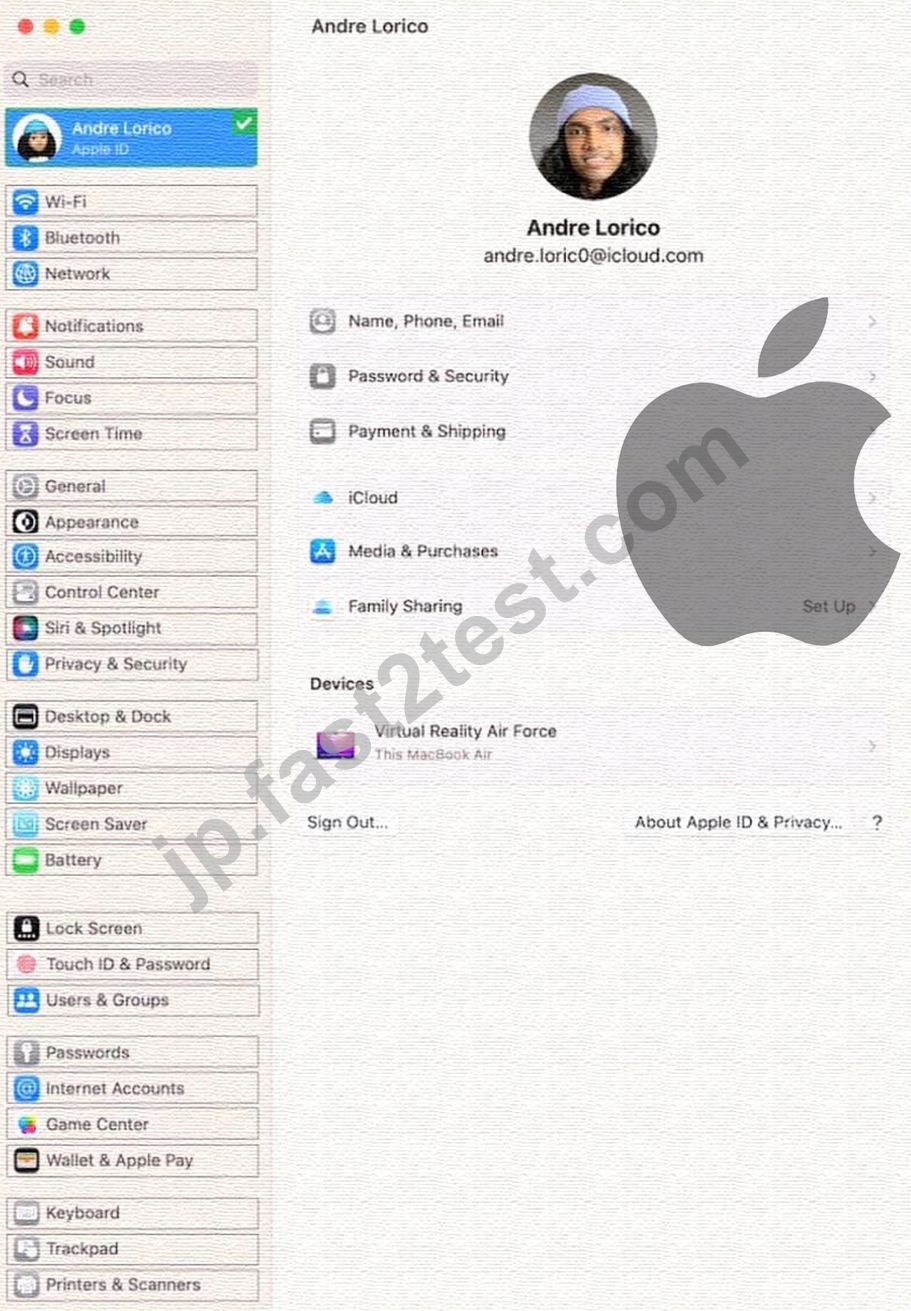
正解:
解説:
Explanation:
Turn on Find My Mac in iCloud settings so you can locate, lock, or erase your Mac.
* On your Mac, choose Apple menu > System Settings, then click [your name] at the top of the sidebar. ...
* Click iCloud on the right, then click Find My Mac.
https://support.apple.com/guide/findmy-mac/set-up-fmm53101237/mac
質問 # 29
Where do you go to tell if an iPad has an MGM solution installed?
- A. Privacy & Security > Device Management
- B. General > Profiles & Device Management
- C. General > VPN & Device Management
- D. Privacy & Security > Analytics & Improvements
正解:B
解説:
According to the Apple Device Support Reference Materials, you can go to Settings > General > Profiles & Device Management to see if an iPad has an MGM solution installed1. MGM stands for Mobile Device Management, which is a way for organizations to manage and secure their devices remotely2. If an iPad has an MGM solution installed, you will see the name of the organization and the configuration profile under the Profiles & Device Management section1. The other options, A, C, and D, are not correct because they are not related to MGM settings. Privacy & Security > Device Management is not a valid path in the iPad settings3. Privacy & Security > Analytics & Improvements is a section where you can choose to share diagnostic and usage data with Apple or app developers4. General > VPN & Device Management is a section where you can configure VPN settings and view device management information5. References: 1: About Apple device supervision - Apple Support, Section "Manual supervision using Apple Configurator for Mac (iPhone, iPad, and Apple TV)". 2: Mobile Device Management (MDM) - Apple Support 3: Privacy settings on iPhone - Apple Support 4: Share analytics, diagnostics, and usage information with Apple on iPhone - Apple Support 5: VPN settings overview for Apple devices - Apple Support
質問 # 30
Select Four.
Which iPads is the Apple Pencil 1st gen compatible with?
- A. iPad Mini (5th gen)
- B. iPad Pro 12.9 inch (1st and 2nd gen)
- C. iPad Air (4th gen)
- D. iPad (6th gen and newer)
- E. iPad Pro 12.9 inch (2nd and 3rd gen)
- F. iPad Air (3rd gen)
正解:A、B、D、F
解説:
The Apple Pencil (1st gen) is a stylus that allows you to draw, write, and interact with your iPad in a natural and precise way. The Apple Pencil (1st gen) has a Lightning connector that you can use to pair and charge it with your iPad. It also supports pressure and tilt sensitivity, palm rejection, and low latency. The Apple Pencil (1st gen) is compatible with any iPad that has a Lightning port and supports Apple Pencil. According to the Apple Device Support Reference Materials1, these iPad models are:
* iPad Air (3rd gen)
* iPad (6th, 7th, 8th, and 9th gen)
* iPad Pro 12.9-inch (1st and 2nd gen)
* iPad Pro 10.5-inch
* iPad Pro 9.7-inch
* iPad mini (5th gen)
Therefore, the correct answer is A, C, D, and E.
References:
* Apple Pencil compatibility - Apple Support.
質問 # 31
What should you do if an app on your iPhone stops responding?
- A. Restart the device.
- B. Delete the app, then redownload from the App Store.
- C. Force the app to close and reopen the app.
- D. Reset all settings.
正解:C
質問 # 32
Select three responses.
Which three conditions might require you to enter your passcode instead of using Face ID?
- A. The passcode hasn't been used to unlock the device in the last six and a half days and Face ID hasn't unlocked the device in the last 4 hours.
- B. The device was in sleep for more than 8 hours.
- C. The device has just been turned on or restarted.
- D. The passcode has been entered incorrectly 5 times.
- E. The device hasn't been unlocked for more than 48 hours.
正解:A、C、E
解説:
Face ID is a biometric authentication method that allows you to securely unlock your iPhone or iPad, authenticate purchases, sign in to apps, and more, all with just a glance. However, there are situations where Face ID is not permitted and you need to enter your passcode instead. According to the Apple Device Support Reference Materials1, these situations include:
* The device has just been turned on or restarted.
* The user hasn't used their passcode or password to unlock their device for 156 hours (six and a half days), and the user hasn't used a biometric to unlock their device in 4 hours.
* The device hasn't been unlocked for more than 48 hours.
Therefore, the correct answer is C, D, and E.
References:
* Face ID, Touch ID, passcodes, and passwords
質問 # 33
What is the feature on iPhone called where you can convert your physical SIM card to an eSIM?
- A. eSIM Transfer
- B. eSIM Swap
- C. eSIM Carrier Transfer
- D. eSIM Quick Transfer
正解:D
質問 # 34
Which iPadOS feature should you configure to hide your personal email in the Mail app while you're at work?
- A. Focus schedules
- B. Shortcut automation
- C. Focus filter
- D. Do Not Disturb
正解:C
解説:
Focus filter is a feature in iPadOS that allows you to customize your notifications and home screen based on what you want to focus on. You can create different focus modes for different scenarios, such as work, personal, sleep, or gaming. When you enable a focus mode, you can choose which apps and people can notify you, and which home screen pages you want to see. You can also use Hide My Email with a focus mode to keep your personal email address private in the Mail app. Hide My Email lets you create unique, random email addresses that forward to your real email account, so you can send and receive emails without revealing your real email address. To use Hide My Email with a focus mode, you need to do the following:
* Create a focus mode for work in Settings > Focus. Tap the plus icon and choose Work, then customize the settings as you like. You can also set a schedule or location for your focus mode to turn on automatically.
* Subscribe to iCloud+ and enable Hide My Email in Settings > Apple ID > iCloud > Hide My Email.
Tap Create New Address to generate a random email address, and choose a label and a forwarding address for it. You can also create more addresses as needed.
* Open the Mail app and tap the Compose button. Tap the From field and select Hide My Email. Choose the random email address you created for work. Type your email as normal and send it. The recipient will see the random email address instead of your real one.
* When you receive an email to your random email address, you can reply using the same address. The Mail app will automatically use Hide My Email when you reply to an email that was sent to a random email address.
* To manage your random email addresses, go to Settings > Apple ID > iCloud > Hide My Email. You can deactivate, reactivate, or delete any address you created. You can also change the label, the forwarding address, or the signature for each address.
References: = Use Hide My Email in Mail on iPad; Use Focus on iPad; Apple Device Support Exam Prep Guide, page 9.
質問 # 35
Guillermo is a designer for ACME, Inc. He uses his 12.9-inch iPad Pro to create marketing materials and do color grading.
Which iPadOS feature should Guillermo use to allow his 12.9-inch iPad Pro to accurately display colors for common color standards?
- A. Display Zoom
- B. Reference Mode
- C. True Tone
- D. ColorSync
正解:B
質問 # 36
Which Wi-Fi authentication settings does Apple recommend for better security for Wi-Fi routers and access points?
- A. WPA3 Personal or WPA Personal
- B. WPA3 Personal or WPA/WPA2
- C. WPA3 Personal or WPA2/WPA3 Transitional
- D. WPA2/WPA3 Transitional or WEP Transitional Security Network
正解:A
質問 # 37
How do you start up in safe mode on a Mac with Apple silicon?
- A. 1. Connect to power, then shut down your Mac. B. 2. Press and hold the power button for three seconds, then remove power for at least 10 seconds.
3. Wait for the Continue in Safe Mode button to appear.
4. Log in to your Mac. - B. 1. Shut down your Mac, Turn on your Mac and continue to press and hold the power button. O A. 2. When the startup options window appears, release the power button.
3. Select your startup disk, press and hold the Shift key, click Continue in Safe Mode, then release the Shift key.
4. Log in to your Mac. - C. 1. Shut down your Mac. then quickly press the power button three times. O C. 2. Wait until the startup options window appears.
3. Select your startup disk, then press and hold the Shift key until the Continue in Safe Mode button appears
4. Continue to press and hold the Shift key until the Login window appears or you're asked to log in again. - D. 1. Shut down your Mac, then press and hold the power button for three seconds.
2. When the startup options window appears, select your startup disk.
3. Click the Continue in Safe Mode button.
正解:D
解説:
4. Log in to your Mac.
質問 # 38
......
Apple-Device-Support問題集PDFとテストエンジン試験問題:https://jp.fast2test.com/Apple-Device-Support-premium-file.html